Black Forest Labs

FLUX Tools

FLUX Tools is a collection of four separate image workflows rather than a single enhancement model. Choose Erase for masked cleanup, Outpainting for extending a composition, Virtual Try-On for combining person and garment images, or Deblur for recovering a soft source. Each tool asks for different input assets, so select the workflow before preparing the image.

How to use this model

  1. 1

    Choose the tool that matches the task: Erase, Outpainting, Virtual Try-On, or Deblur.

  2. 2

    Upload the highest-quality source available; avoid resizing it before masking or expansion.

  3. 3

    For Erase, paint the complete unwanted area in white on a same-size mask and keep everything else black.

  4. 4

    For Outpainting, set the new canvas and offsets; for Virtual Try-On, provide clear person and garment images.

  5. 5

    Inspect seams, repeated textures, garment boundaries, and facial detail at full size before saving the result.

ToolsAvailable

FLUX Erase

FLUX Erase removes an object or blemish from a source image and fills the selected region from surrounding context. The mask must match the source dimensions: white marks what to remove and black protects the rest. It is intended for localized cleanup, not global restyling.

Properties

  • Requires a source image and a same-size removal mask.
  • White mask pixels are removed; black pixels are preserved.

Best for

  • Object removal
  • Image cleanup

Tips

  • The mask must match the source dimensions.
  • Paint the area to remove white and preserve the rest in black.

How to use this model

  1. 1

    Upload the source at its original dimensions.

  2. 2

    Create a same-size black mask and paint the complete unwanted area white.

  3. 3

    Include a small margin around difficult edges without covering content that must remain.

  4. 4

    Generate and inspect reconstructed texture, straight lines, and object boundaries.

  5. 5

    Refine the mask and rerun if remnants or obvious fill patterns remain.

Examples

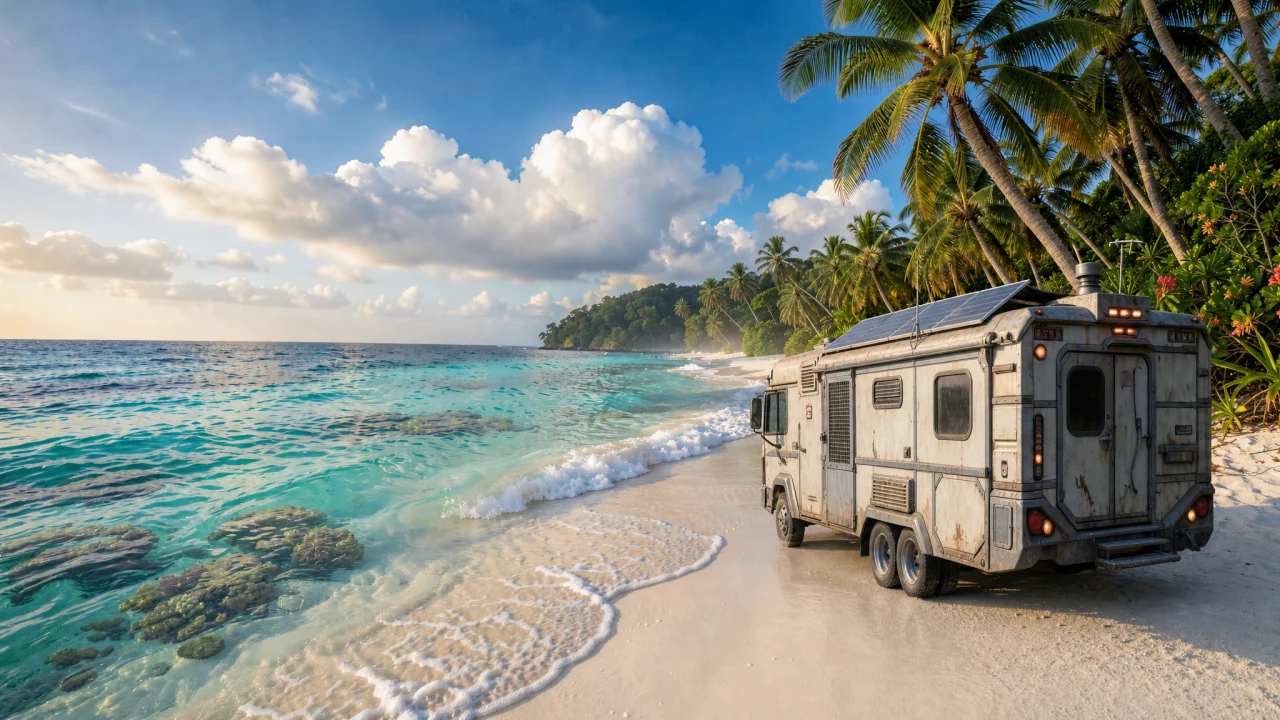
Example output from FLUX Erase
Beach scene before the camper was erased
100%

Parameters

Source Image

Required

Removal Mask

Required

White pixels are removed; black pixels are preserved. Use the same dimensions as the source image.

Mask Dilation

Optional

Seed

Optional
ToolsAvailable

FLUX Outpainting

FLUX Outpainting places the source on a larger canvas and synthesizes the missing area around it. Horizontal and vertical offsets control where the original sits, while optional guidance can describe the extended scene. It is useful for reframing, changing aspect ratio, and adding composition space without stretching the original.

Properties

  • Expands a source image onto a larger canvas.
  • Supports source placement with horizontal and vertical offsets.

Best for

  • Canvas expansion
  • Background extension

Tips

  • Use offsets to control where the source sits on the output canvas.
  • High mode prioritizes fidelity; fast mode prioritizes latency.

How to use this model

  1. 1

    Upload the uncropped source at the best available quality.

  2. 2

    Set output width and height for the intended composition.

  3. 3

    Use horizontal and vertical offsets to position the source on the new canvas.

  4. 4

    Add concise guidance for scenery, lighting, or objects that should continue outside the original frame.

  5. 5

    Check seams, perspective, horizons, and repeated elements along every expanded edge.

Examples

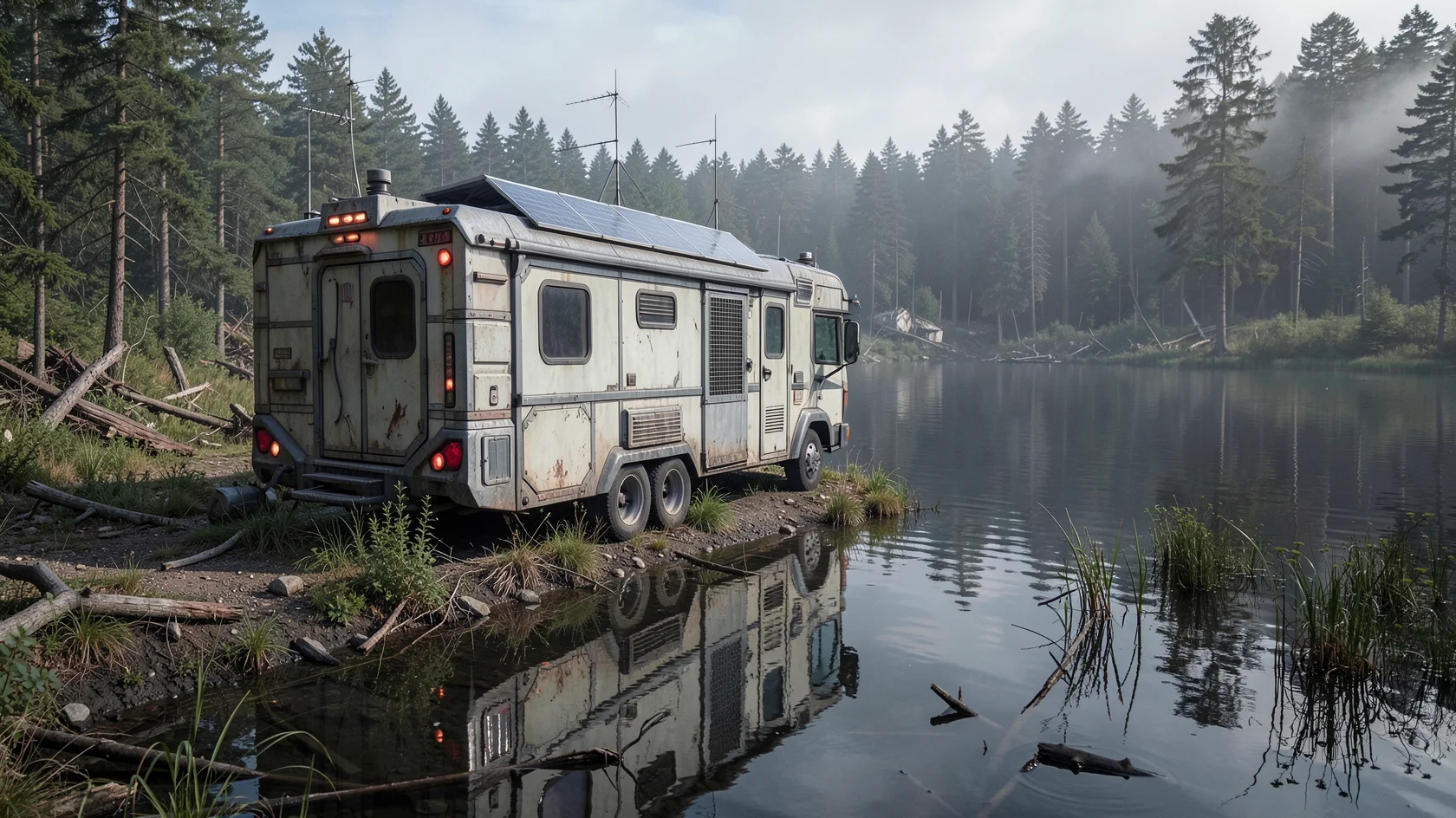
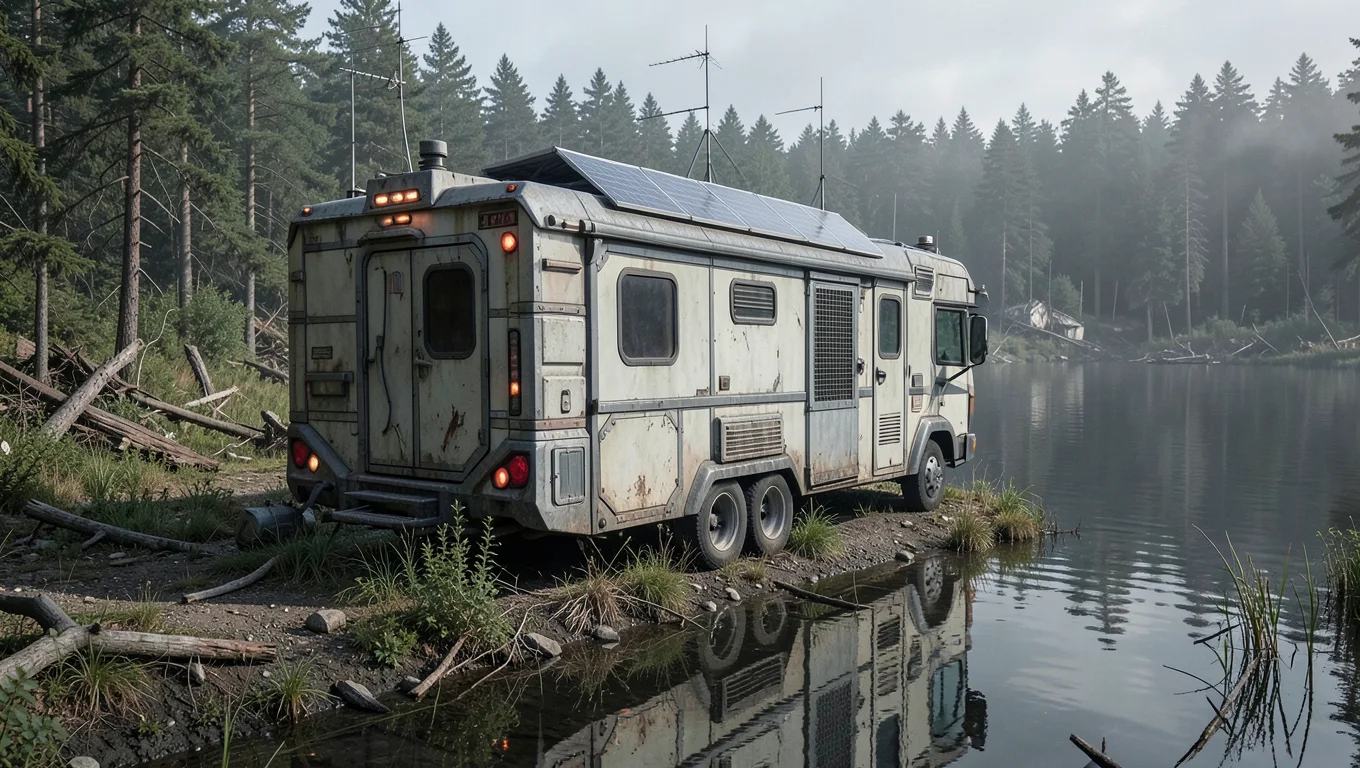
Camper scene expanded beyond the original frame with FLUX Outpainting
Original camper scene before expanding the canvas
100%

Parameters

Source Image

Required

Image to place on the expanded canvas.

Output Width

Required

Output Height

Required

Mode

Optional
  • high

  • fast

Auto Crop

Optional

Prompt

Optional

Optional experimental guidance for the extended area.

Horizontal Offset

Optional

Vertical Offset

Optional
ToolsAvailable

FLUX Virtual Try-On

FLUX Virtual Try-On combines a person image with a separate garment image to render the clothing on that person. Clear body visibility and a complete, unobstructed product image give the model the strongest information about fit and construction. The result is a visualization and should not be treated as a precise sizing guarantee.

Properties

  • Requires separate person and garment images.
  • Designed for garment visualization rather than exact fit measurement.

Best for

  • Fashion visualization
  • Garment previews

Tips

  • Use a clear full-body or half-body person image.
  • Use a clean garment image with the full item visible.

How to use this model

  1. 1

    Upload a clear full-body or half-body person image with minimal occlusion.

  2. 2

    Upload one clean garment image with the entire item visible.

  3. 3

    Prefer a garment category and viewing angle compatible with the person's pose.

  4. 4

    Generate and inspect neckline, sleeves, hands, waist, hems, and garment graphics.

  5. 5

    Try cleaner inputs or a less obstructed pose if anatomy or garment boundaries distort.

Examples

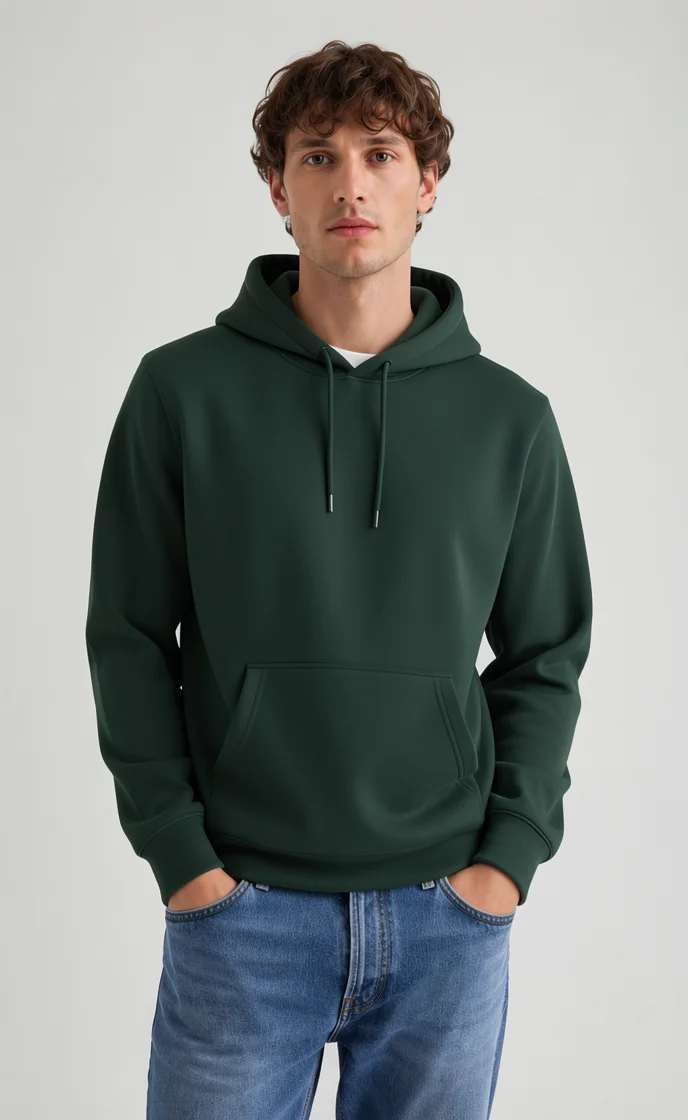
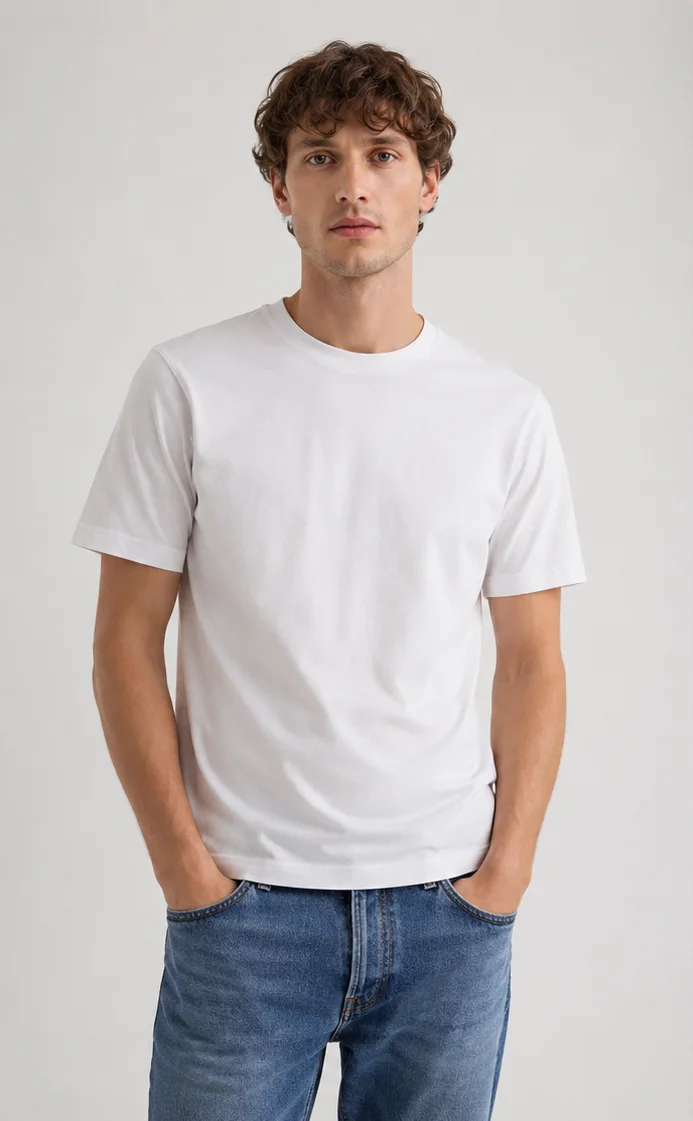
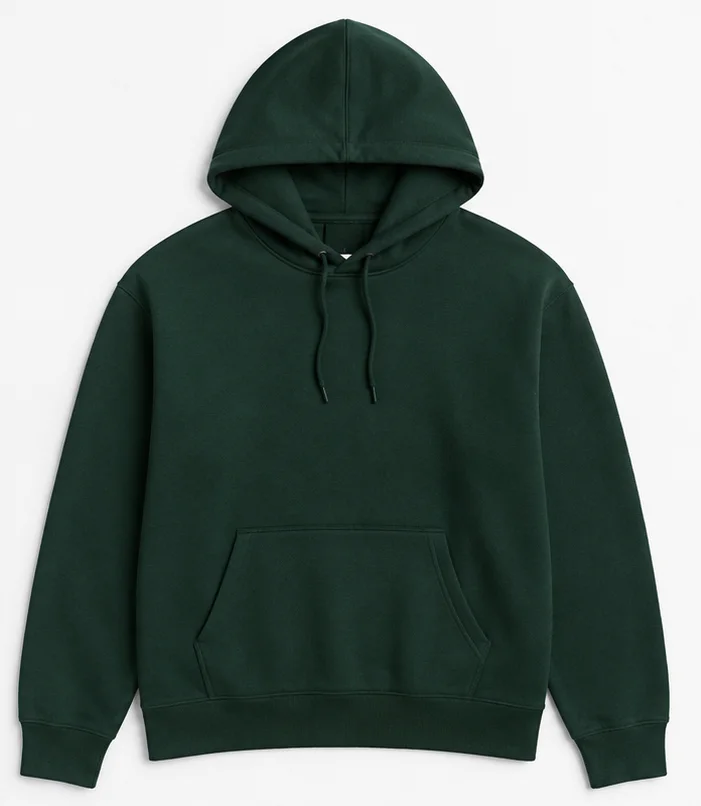
Synthetic character wearing the referenced green hoodie after FLUX Virtual Try-On
Synthetic GPT Image 2 character before virtual try-on
100%

Reference

Green hoodie supplied as the garment reference

Parameters

Person

Required

Garment

Required

Prompt

Required

Seed

Optional
ToolsRetired

FLUX Deblur

FLUX Deblur reconstructs detail in images softened by motion, defocus, or general blur. Because reconstruction can infer information that was not legible in the source, important faces, text, and product details should be checked carefully. A seed can be reused when a reproducible result is needed.

Properties

  • Targets motion blur, defocus, and general softness.
  • May reconstruct details that were not fully visible in the source.

Best for

  • Motion blur
  • Soft or defocused images

Tips

  • Use a seed when you need reproducible output.

How to use this model

  1. 1

    Upload the least-compressed version of the blurred image.

  2. 2

    Inspect whether blur affects the whole frame or a moving subject before processing.

  3. 3

    Run the deblur without prior aggressive sharpening or denoising.

  4. 4

    Compare faces, text, hair, fine edges, and repeating texture with the source at 100%.

  5. 5

    Reuse the seed for a stable rerun or try another result if reconstructed detail is implausible.

Parameters

Source Image

Required

Seed

Optional