Freepik

Freepik Upscale

Magnific upscaling can enlarge an image while reconstructing detail rather than merely stretching pixels. Creative offers prompt-guided variation with controls such as creativity and resemblance; Precision V2 is better suited to controlled enhancement with sharpening and texture controls. Both can change fine content, so compare the result against the source at full size.

How to use this model

  1. 1

    Choose Creative for prompt-guided reinterpretation or Precision V2 when source fidelity is the priority.

  2. 2

    Upload the cleanest source available and choose a scale factor appropriate for the final display or print size.

  3. 3

    With Creative, describe the desired textures and details, then balance creativity against resemblance.

  4. 4

    With Precision V2, start with restrained sharpening and smart grain to avoid halos or artificial texture.

  5. 5

    Inspect faces, typography, logos, repeating patterns, and edges at 100% before accepting the upscale.

CreativeRetired

Magnific Upscaler Creative

Magnific Creative enlarges an image while using a prompt and adjustable controls to invent or refine texture and detail. Creativity controls how freely the result departs from the source, while Resemblance pulls it back toward the original structure. It is useful for stylized or generative enhancement, but not when every small source detail must remain literal.

Properties

  • Supports 2x, 4x, 8x, and 16x enlargement.
  • Exposes creativity, resemblance, HDR, and fractality controls.
  • May intentionally change source content in response to the prompt.

How to use this model

  1. 1

    Upload the cleanest source and choose the required 2x, 4x, 8x, or 16x scale.

  2. 2

    Describe the desired materials, textures, and fine details in the prompt.

  3. 3

    Start with moderate creativity and higher resemblance for a conservative result.

  4. 4

    Tune HDR, fractality, and engine only after the overall structure is correct.

  5. 5

    Compare faces, logos, text, and repeated patterns with the source at 100%.

Examples
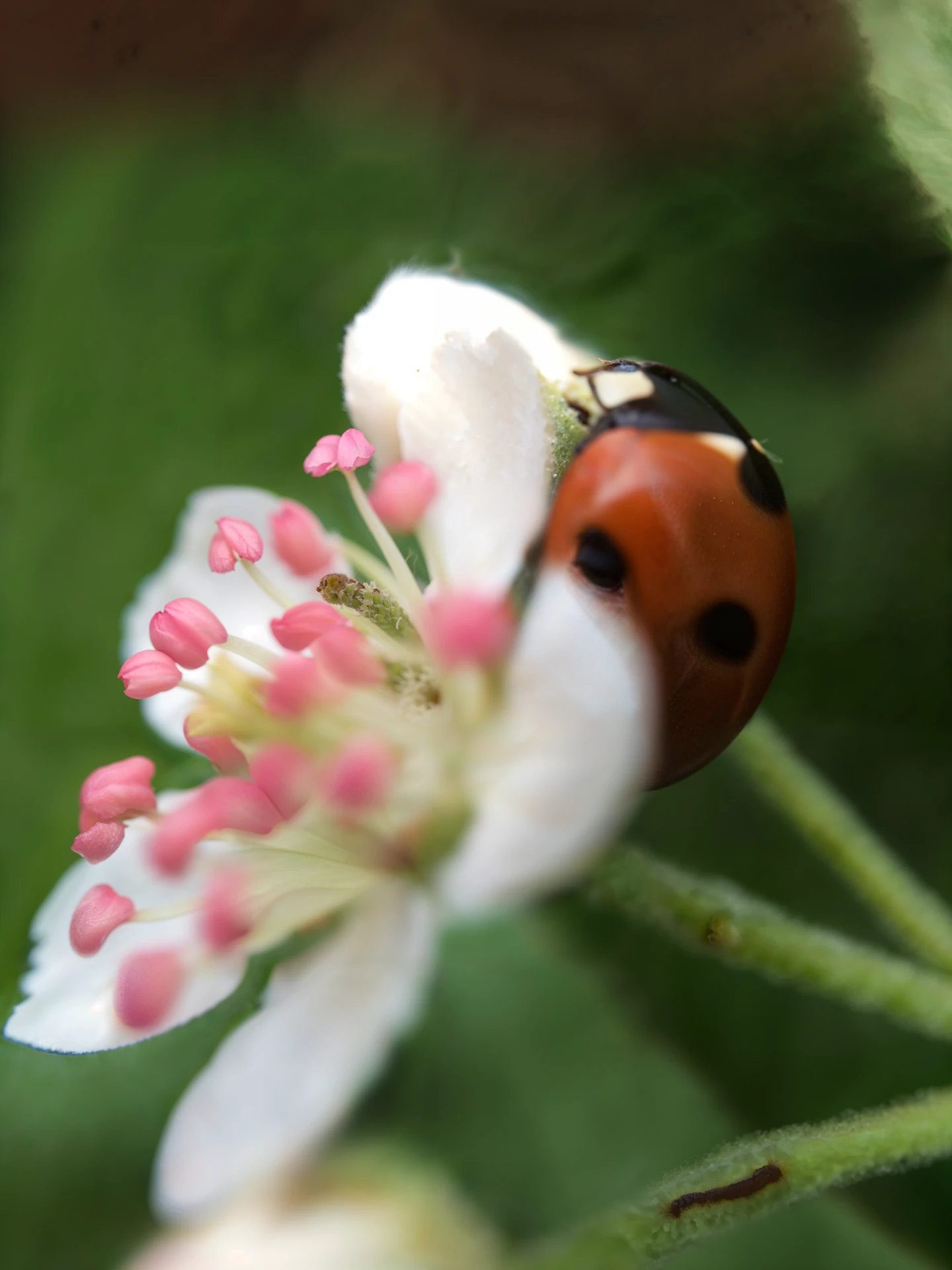
A close-up of a ladybird on a flower

Parameters

Image

Required

The resulted image can't exceed maximum allowed size of 25.3 million pixels.

Scale Factor

Optional

Configure scale factor of the image. For higher scales, the image will take longer to process

  • 2x

  • 4x

  • 8x

  • 16x

Optimization

Optional

Styles to optimize the upscale process

  • Standard

  • Soft Portraits

  • Hard Portraits

  • Art and Illustration

  • Videogame Assets

  • Nature and Landscapes

  • Films and Photography

  • 3D Renders

  • Science Fiction and Horror

Prompt

Optional

Prompt to guide the upscale process. Reusing the same prompt for AI-generated images will improve the results

Creativity

Optional

Increase or decrease AI's creativity. Valid values range [-10, 10], default 0.

HDR

Optional

Increase or decrease the level of definition and detail. Valid values range [-10, 10], default 0.

Resemblance

Optional

Adjust the level of resemblance to the original image. Valid values range [-10, 10], default 0.

Fractality

Optional

Control the strength of the prompt and intricacy per square pixel. Valid values range [-10, 10], default 0.

Engine

Optional

Magnific model engines

  • Automatic

  • Illusio

  • Sharpy

  • Sparkle

Precision V2Retired

Magnific Upscaler Precision V2

Magnific Precision V2 enlarges an image with explicit controls for scale, sharpening, and smart grain. It is the more controlled option in this family, but inferred detail can still modify small source content. Start conservatively and use the full-size comparison to distinguish useful reconstruction from halos or synthetic texture.

Properties

  • Exposes scale, sharpen, and smart-grain controls.
  • Designed for controlled enlargement but may reconstruct fine content.

How to use this model

  1. 1

    Upload the highest-quality source available and choose the scale for the final use.

  2. 2

    Begin with low or moderate sharpening to avoid halos on hard edges.

  3. 3

    Add smart grain only when the result looks unnaturally smooth or the source has meaningful texture.

  4. 4

    Generate and compare at 100% rather than judging from a fitted preview.

  5. 5

    Reduce settings if text, faces, logos, or repeating patterns drift from the source.

Examples

Example output from Magnific Upscaler Precision V2

Parameters

Image

Required

Source image to upscale.

Sharpen

Optional

Image sharpness intensity control. Higher values increase edge definition and clarity in the upscaled image. Valid values range from 0 (no sharpening) to 100 (maximum sharpness). Default is 7.

Smart Grain

Optional

Intelligent grain/texture enhancement for the upscaled image. Helps preserve natural film grain and texture detail. Higher values add more fine-grained texture to prevent the upscaled image from looking too smooth or artificial. Valid values range from 0 (no grain) to 100 (maximum grain). Default is 7.

Ultra Detail

Optional

Ultra detail enhancement level for the image upscaling process. This parameter controls how much fine detail the AI adds to the upscaled image, such as textures, patterns, and micro-details. Higher values create more intricate details. Valid values range from 0 to 100. Default is 30.

Flavor

Optional

Image processing flavor that determines the upscaling style and optimization for different image types: * sublime: Optimized for artistic and illustrated images with smooth gradients and vibrant colors * photo: Optimized for photographic images, preserving natural colors and realistic details * photo_denoiser: Specialized for photos with noise reduction, ideal for low-light or grainy photographs

  • sublime

  • photo

  • photo_denoiser

Scale Factor

Optional

Image scaling factor for upscaling. Determines how much larger the output image will be compared to the input. For example, a scale ratio of 2 will double the dimensions (2x width and 2x height, resulting in 4x total pixels). Valid values range from 2 to 16.